
For the longest time, running two WhatsApp numbers meant carrying two phones or messing around with workarounds that never quite worked on an iPhone. That’s over. WhatsApp now lets you add a second account right inside the same app, so your work number and your personal one can live on one phone and you just switch between them.
If you’ve got a separate number for business, or a local SIM from travelling, or you just want to keep two parts of your life apart, this is exactly what you need. Here’s how to set it up.
Before you start
Two things to have ready.
You need a second phone number, and it has to be one you can receive a code on right now, either by SMS or a phone call. WhatsApp verifies every account this way, so a number you can’t get messages on won’t work. It can be a second SIM, an eSIM, or any spare number that isn’t already tied to your main WhatsApp.
It also helps to know your iPhone is up to date. WhatsApp put the multi account feature behind a recent version of the app, so if you don’t see the options below, update WhatsApp from the App Store first.
The exact path to the setting changed slightly between iOS versions, so I’ve covered both below. Find the one that matches what you see on your phone.
Method 1: Through the Account menu on Older iOS
This is the route on most iPhones, including older iOS versions like the one running on an iPhone 13.
Open WhatsApp and go to Settings, then tap Account.
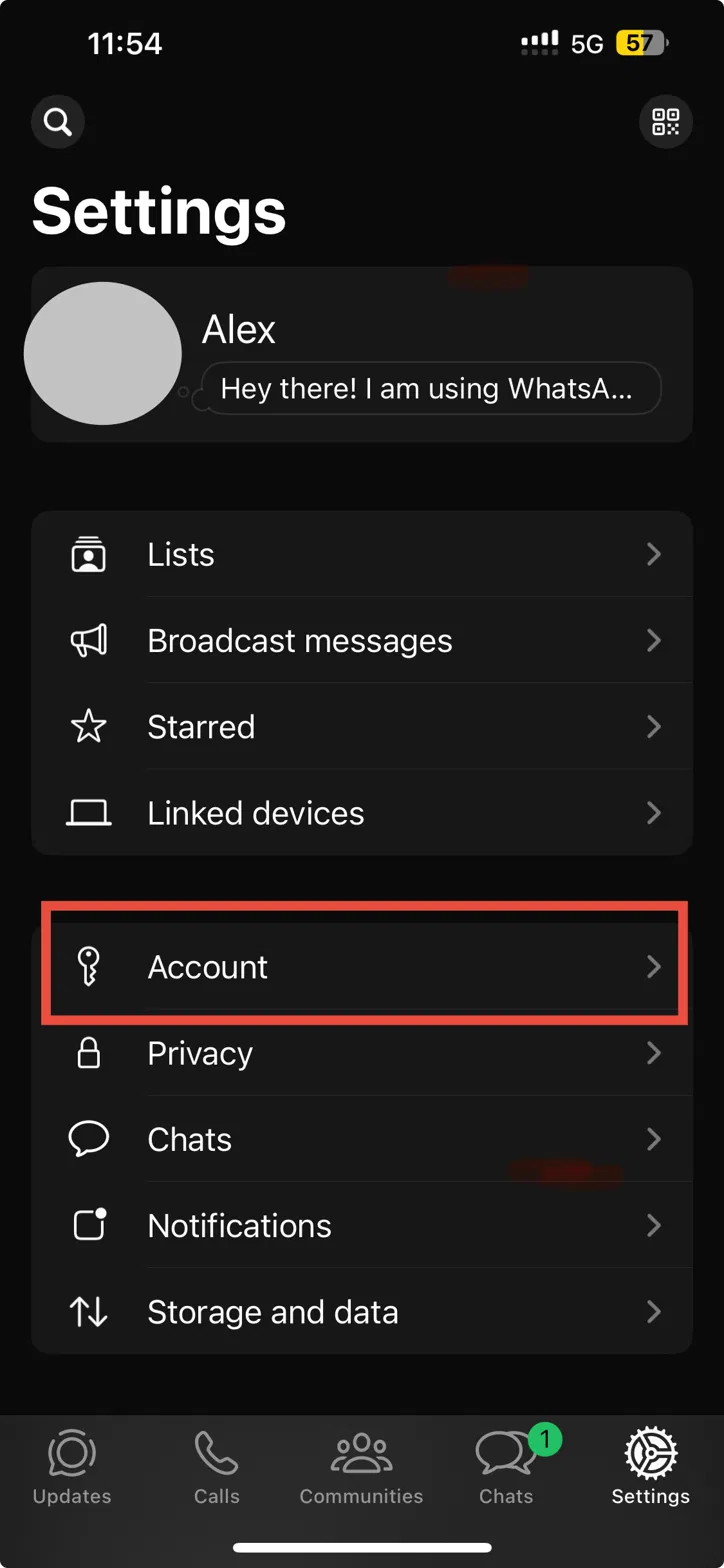
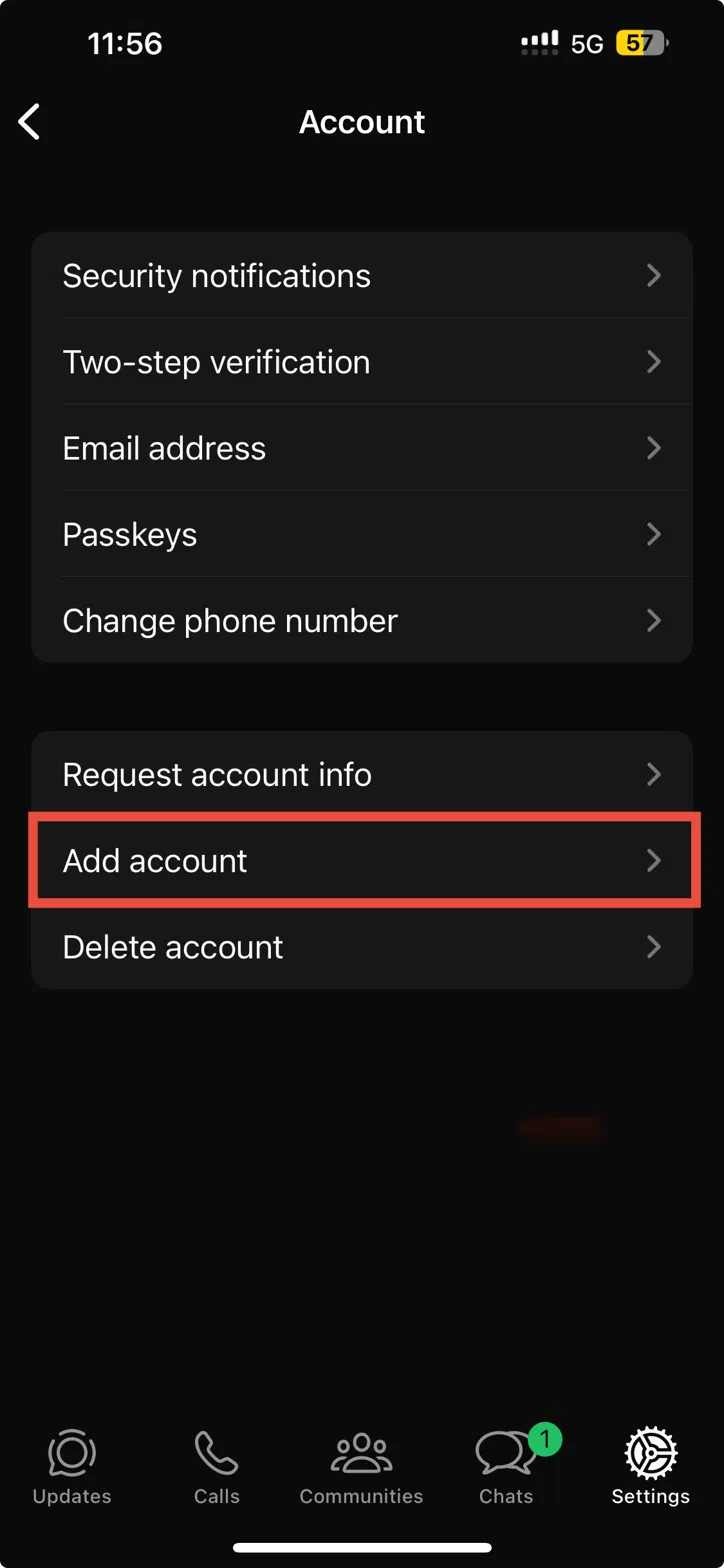
On the next screen, scroll down and tap Add account.
A small panel slides up from the bottom showing your current account. Tap Add account there to start the second one.
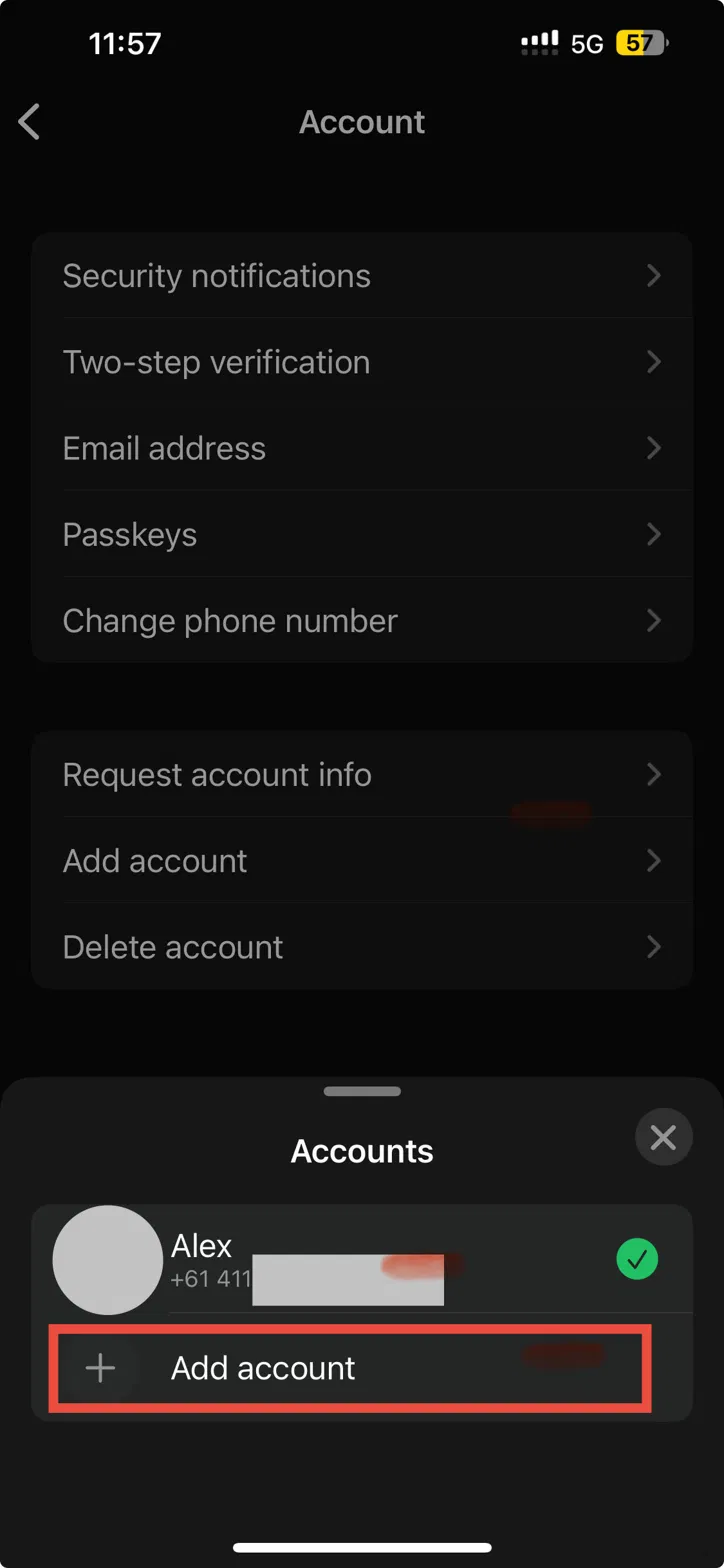

That’s the setup part done. Skip ahead to the “Adding the new number” section below, since the rest is the same on every iPhone.
Method 2: The quick way on newer iOS
On the latest iOS, like iOS 26 on an iPhone 15, WhatsApp moved this somewhere faster. You don’t need to dig through the Account menu at all.
Open the Settings tab where your profile is. Right next to your name you’ll see a small green plus icon. Tap it.
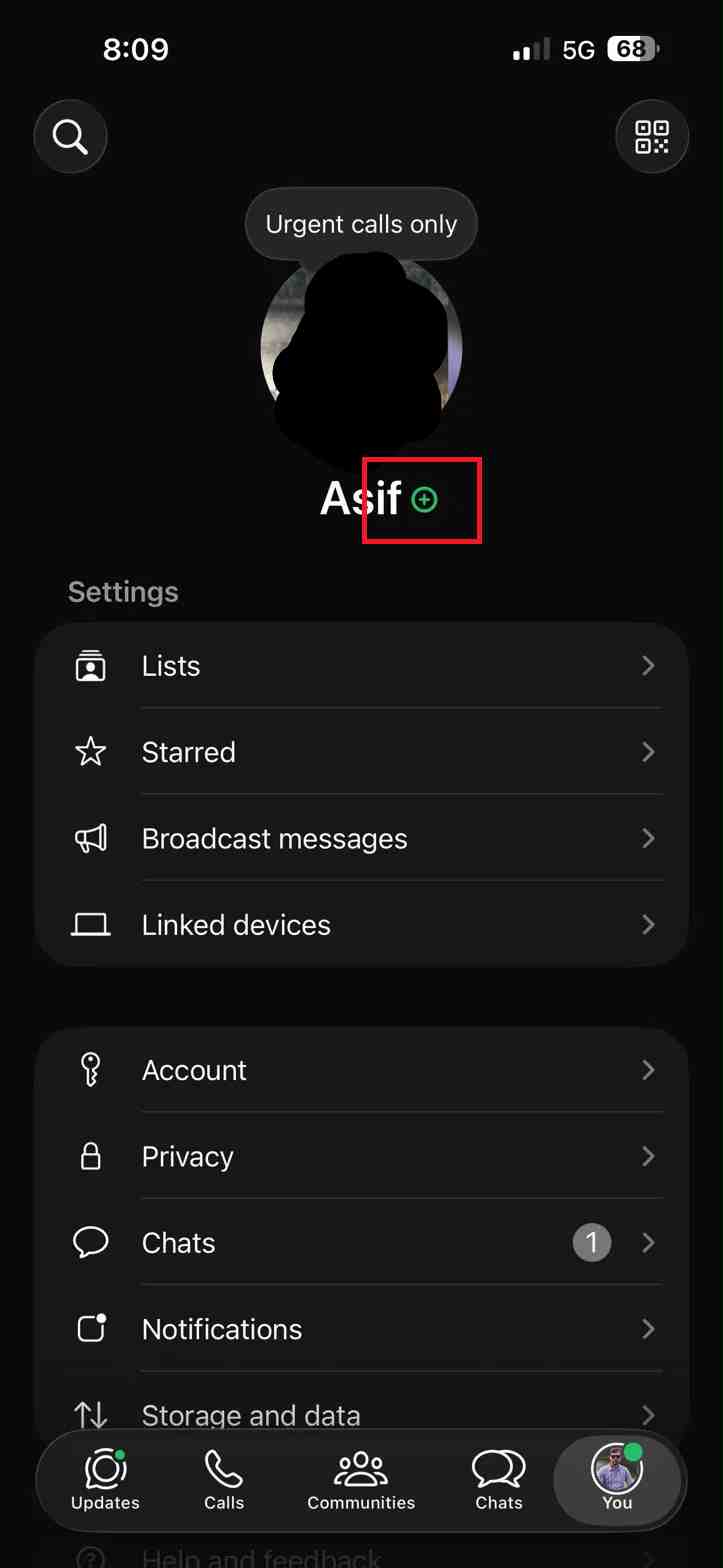
The Accounts panel pops straight up. Tap Add account.
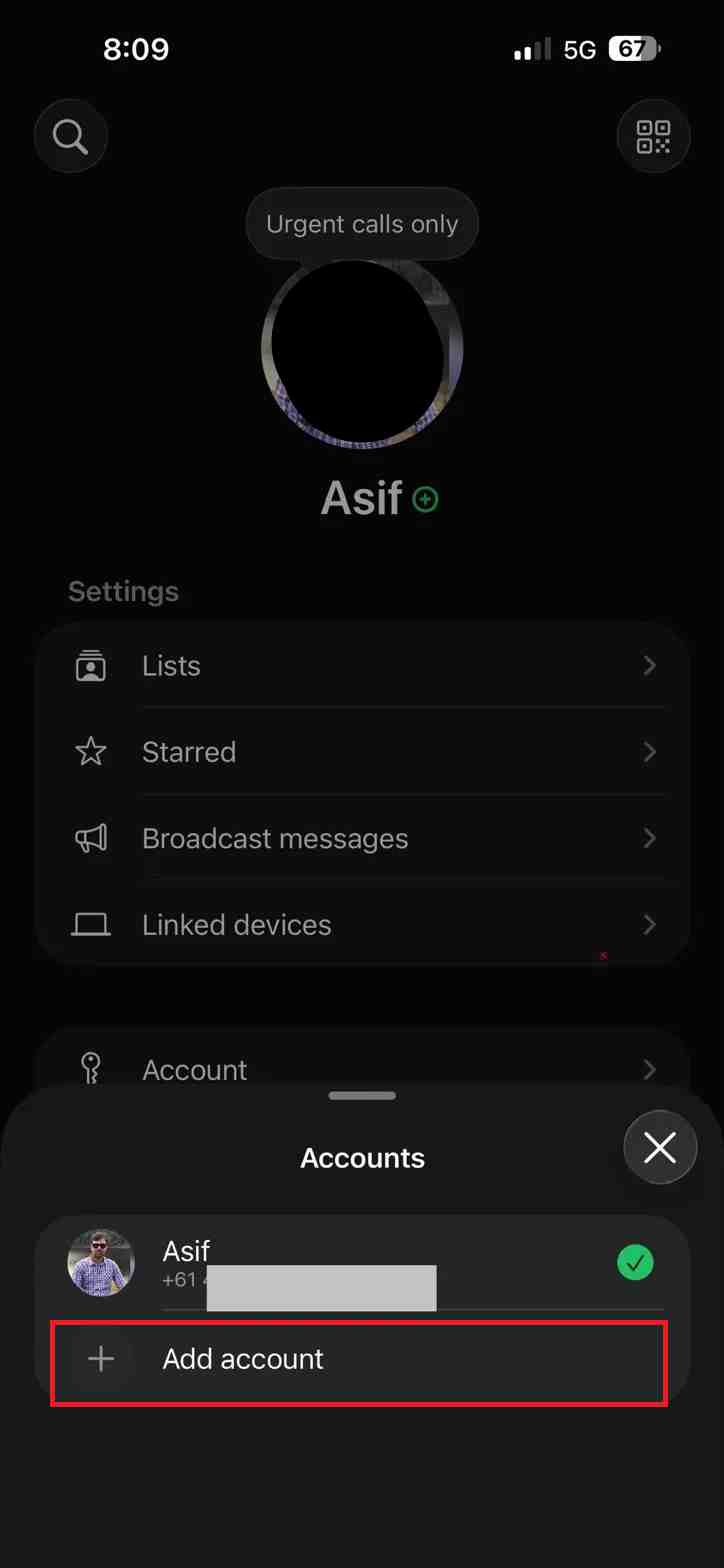
Quicker than the old way once you know it’s there.
A handy shortcut: you can also press and hold the Settings tab at the bottom of the app to jump straight to the add account option, skipping the menus completely.
Adding the new number
From here it’s the same on any iPhone.
WhatsApp shows its welcome screen. Tap Agree and continue to move on.
Now pick your country and type in the second phone number. Double check it before you continue, since the verification code goes to this number.
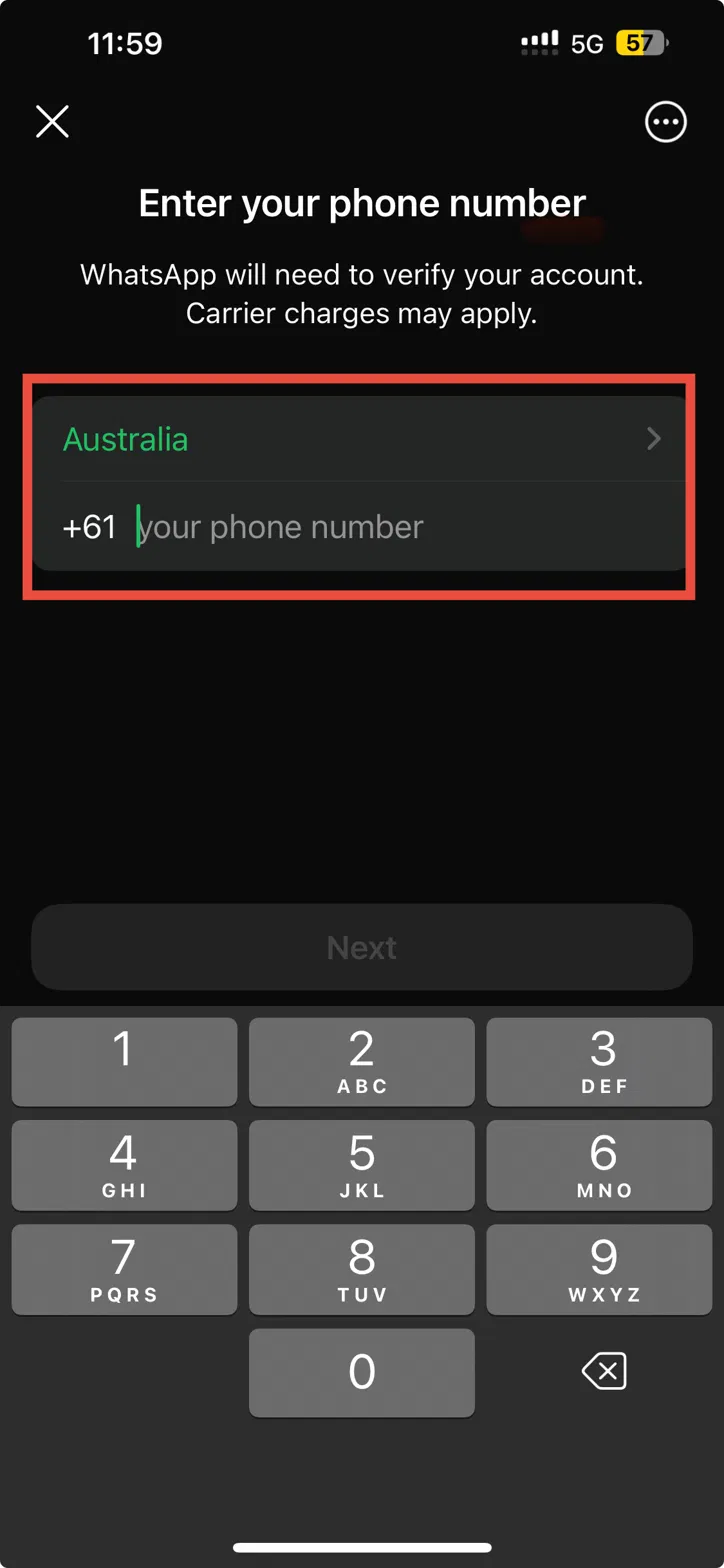
Tap Next, then enter the code WhatsApp sends you by SMS or call. Once that’s confirmed, your second account is live.
Switching between your accounts
After the second account is set up, hopping between them is easy. Open Settings, tap your name or the Accounts panel, and pick the number you want to use. The tick shows which one is active. Everything in the app, your chats, calls and status, follows whichever account you’ve switched to.
You’ll get notifications for both numbers either way, so you won’t miss a message just because you’re parked on the other account.
A few things worth knowing
Each account needs its own number. You can’t register the same number as a second account, and a number already used on another phone’s WhatsApp will get logged out there when you add it here.
Your chats stay separate. The two accounts don’t share messages, contacts or media, which is the whole point. Nothing from your work number bleeds into your personal one.
Keep both numbers active. If a number gets cancelled or you lose access to it, you won’t be able to re verify that account later, so don’t add a number you’re about to give up.
A few common questions
How many WhatsApp accounts can I run on one iPhone? WhatsApp supports two accounts in the app. That covers the usual work and personal split most people are after.
Do I need two SIM cards? You need two numbers, but they don’t both have to be physical SIMs. An eSIM or any number you can receive a verification code on will do.
Will the second account get its own notifications? Yes. You’re notified for both numbers, no matter which one is currently open.
Can I use WhatsApp Business as my second account? WhatsApp Business is a separate app. This feature is for adding a second standard WhatsApp account inside the regular app.
Worth knowing
Two WhatsApp accounts on one iPhone is one of those features people wished for over years, and now it takes about two minutes to set up. Have your second number ready, follow the path that matches your iOS, and you’re switching between numbers in no time.
Related guides: