Whether you’re checking if a game will run, selling an old laptop or buying a used one, you’ll need to know what’s inside the computer. You don’t need to open the case or install anything. Windows already shows every spec, you just need to know where to look.
Here are five ways, from the quickest to the most detailed.
1. The Fastest Way: Windows + Pause
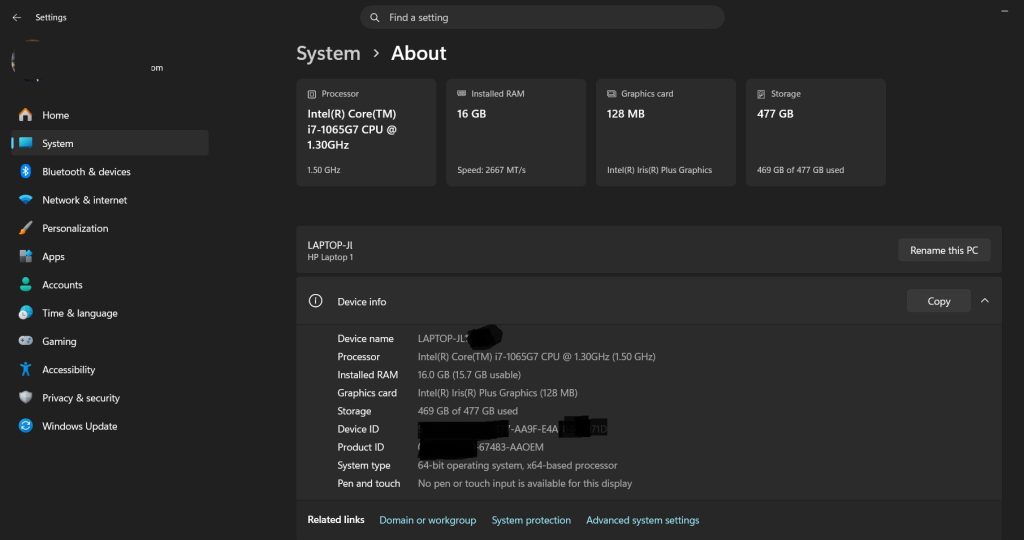
Press Windows + Pause/Break and the About page opens. If your keyboard has no Pause key, go to Settings > System > About. You’ll see:
- Processor: the CPU model and speed, for example Intel Core i5-1235U or AMD Ryzen 7 5800H
- Installed RAM: total memory
- System type: 64-bit or 32-bit
- Windows edition and version further down
This covers what most people need. For graphics card and storage, use the next method.
2. Task Manager: The Best Overall View
Press Ctrl + Shift + Esc to open Task Manager, then click Performance on the left. Each item shows detailed specs on the right:
- CPU: exact model, base speed, number of cores and logical processors
- Memory: total RAM, speed (like 3200 MT/s), how many slots are used, and the type (SODIMM for laptops)
- Disk: each drive and whether it’s an SSD or HDD
- GPU: your graphics card name and how much dedicated memory it has
The “Slots used” line under Memory is really useful if you’re thinking about upgrading. “1 of 2” means you have a free slot for more RAM.
3. System Information (msinfo32): Every Detail
Press Windows + R, type msinfo32 and press Enter. The System Summary page lists almost everything, including:
- System manufacturer and model, which is handy for finding drivers
- BIOS version and date
- BaseBoard manufacturer and product, which is your motherboard model
- Whether Secure Boot is on
For graphics details, expand Components and click Display.
4. DirectX Diagnostic Tool (dxdiag): For Gamers
Press Windows + R, type dxdiag and press Enter. The System tab shows your processor and memory, and the Display tab shows your graphics card, its memory and driver version. Laptops with two graphics chips (Intel plus Nvidia, for example) show a second Render tab for the dedicated card.
Many game support teams ask for a dxdiag report. Click Save All Information to create a text file you can send them.
5. Command Line: Specs in Text You Can Copy
Right click Start, open Terminal and type:
systeminfo
You’ll get a text list with the OS, install date, processor, RAM and more, which is easy to copy into a forum post or a sale listing.
To find your motherboard model in PowerShell, run:
Get-CimInstance Win32_BaseBoard | Select-Object Manufacturer, Product
And to see each RAM stick with its size and speed:
Get-CimInstance Win32_PhysicalMemory | Select-Object Manufacturer, Capacity, Speed
Checking Specs When Buying a Used PC
Sellers sometimes list the wrong specs, by mistake or not. Before paying, open Task Manager’s Performance tab yourself and check the CPU, RAM and GPU against the listing. Then check the disk type says SSD if that’s what you were promised. It takes thirty seconds and has saved plenty of people from a bad deal. While you’re at it, run a battery report on a laptop.
What About a Mac?
Click the Apple menu and choose About This Mac. You’ll see the chip, memory and macOS version. Click More Info for storage and other details.
Frequently Asked Questions
How do I check my graphics card on Windows?
Open Task Manager with Ctrl + Shift + Esc, click Performance, and look for GPU at the bottom of the list. If you see GPU 0 and GPU 1, the second one is usually the more powerful dedicated card.
How do I know if I have an SSD or HDD?
In Task Manager’s Performance tab, each disk shows its type under its name. We have a full guide on checking if your drive is an SSD or HDD.
How do I check specs if the PC won’t start?
Look for the model number on a sticker underneath a laptop or on the back of a desktop, and search it on the manufacturer’s website. You can also enter the BIOS, which shows the CPU and RAM. See our list of BIOS keys for every brand.