If your laptop used to last five hours and now barely manages two, the battery has probably worn down. The good news is that Windows can tell you exactly how much, using a hidden report most people never hear about. Macs show it right in the settings.
This takes about one minute and doesn’t need any software.
Check Battery Health on Windows 11 and 10
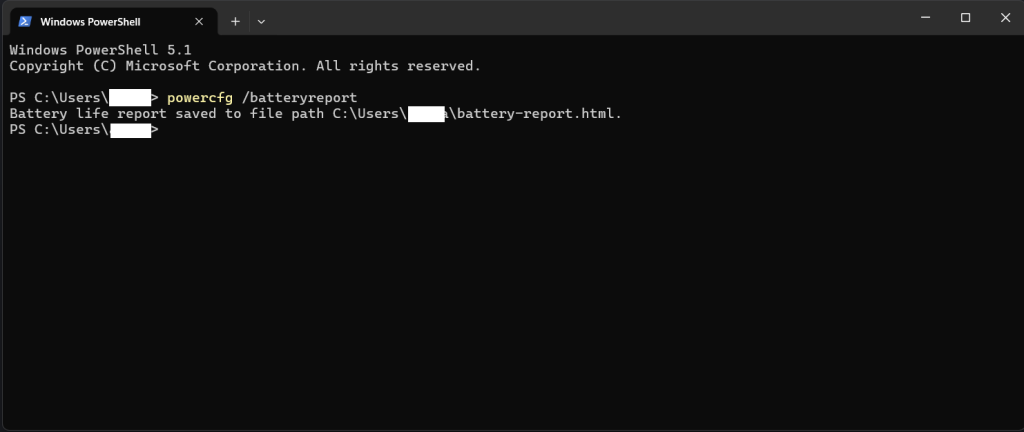
Windows has a built in battery report that shows your battery’s original capacity, its current capacity and how many charge cycles it has done.
- Right click the Start button and choose Terminal (or search for Command Prompt on Windows 10).
- Type this and press Enter:
powercfg /batteryreport - You’ll see a message saying the battery life report was saved, followed by a file path, usually C:\Users\YourName\battery-report.html.
- Open File Explorer, go to that folder and double click battery-report.html. It opens in your browser.
How to Read the Battery Report
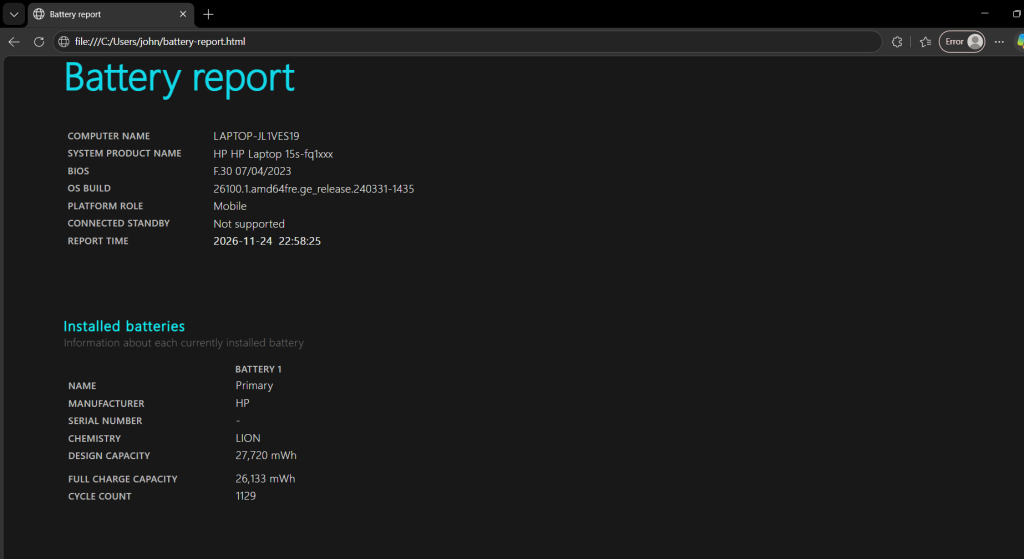
Scroll to the Installed batteries section near the top. The three numbers that matter are:
- Design capacity: how much the battery held when it was new
- Full charge capacity: how much it holds now
- Cycle count: how many full charge cycles it has done (some laptops leave this blank)
To get your battery health, divide full charge capacity by design capacity and multiply by 100.
Example: design capacity 50,000 mWh, full charge capacity 41,000 mWh. 41,000 ÷ 50,000 × 100 = 82% health.
Further down, Battery capacity history shows how the capacity has dropped over time, and Battery life estimates shows how long the battery lasts now compared with when it was new. That second one is the most practical number of all.
Check Battery Health on a Mac
- Click the Apple menu and open System Settings.
- Click Battery.
- Click the (i) button next to Battery Health. You’ll see the condition (Normal or Service Recommended) and the Maximum Capacity percentage.
For the cycle count, hold the Option key, click the Apple menu and choose System Information. Then click Power in the sidebar and look for Cycle Count.
Your Laptop Maker’s Own Tool
Most brands include an app that checks the battery and often lets you protect it too:
- Lenovo: Lenovo Vantage, under Battery
- HP: HP Support Assistant, which includes a battery check
- Dell: SupportAssist, or Dell Power Manager on business laptops
- Asus: the MyASUS app
When Should You Replace the Battery?
| Health | What it means |
|---|---|
| Above 80% | Healthy. Normal wear for a laptop a couple of years old. |
| 60% to 80% | Noticeably shorter runtime, but fine if you’re usually near a charger. |
| Below 60% | Worth replacing, especially if the laptop shuts down suddenly at 20% or 30%. |
One warning sign that matters more than any number: if the battery is swelling (the touchpad lifts, the case bulges or the laptop rocks on a flat table), stop using it on battery and get it replaced soon.
How to Make Your Laptop Battery Last Longer
The best trick is limiting the charge to around 80% if you mostly use the laptop plugged in. Look for these settings:
- Lenovo: Conservation Mode in Lenovo Vantage
- Asus: Battery Health Charging in MyASUS
- Dell: Primarily AC Use in Dell Power Manager or the BIOS
- HP: Battery Health Manager in the BIOS on many models
- Mac: Optimised Battery Charging, on by default
Keeping the laptop cool helps too. Don’t use it on a bed or pillow, where the vents get blocked.
Frequently Asked Questions
Why does powercfg say “unable to perform operation”?
This usually happens on desktops with no battery, or in some virtual machines. On a laptop, try running Terminal as administrator.
Why is my cycle count blank?
Some laptop batteries don’t report it to Windows. Check your manufacturer’s app instead, which often shows it.
Can I reset battery health?
No. Health reflects physical wear inside the battery. Calibrating (charging to 100% and draining fully) can make the reading more accurate, but it won’t restore lost capacity.
More guides: check battery health on Android and boot menu and BIOS keys.